
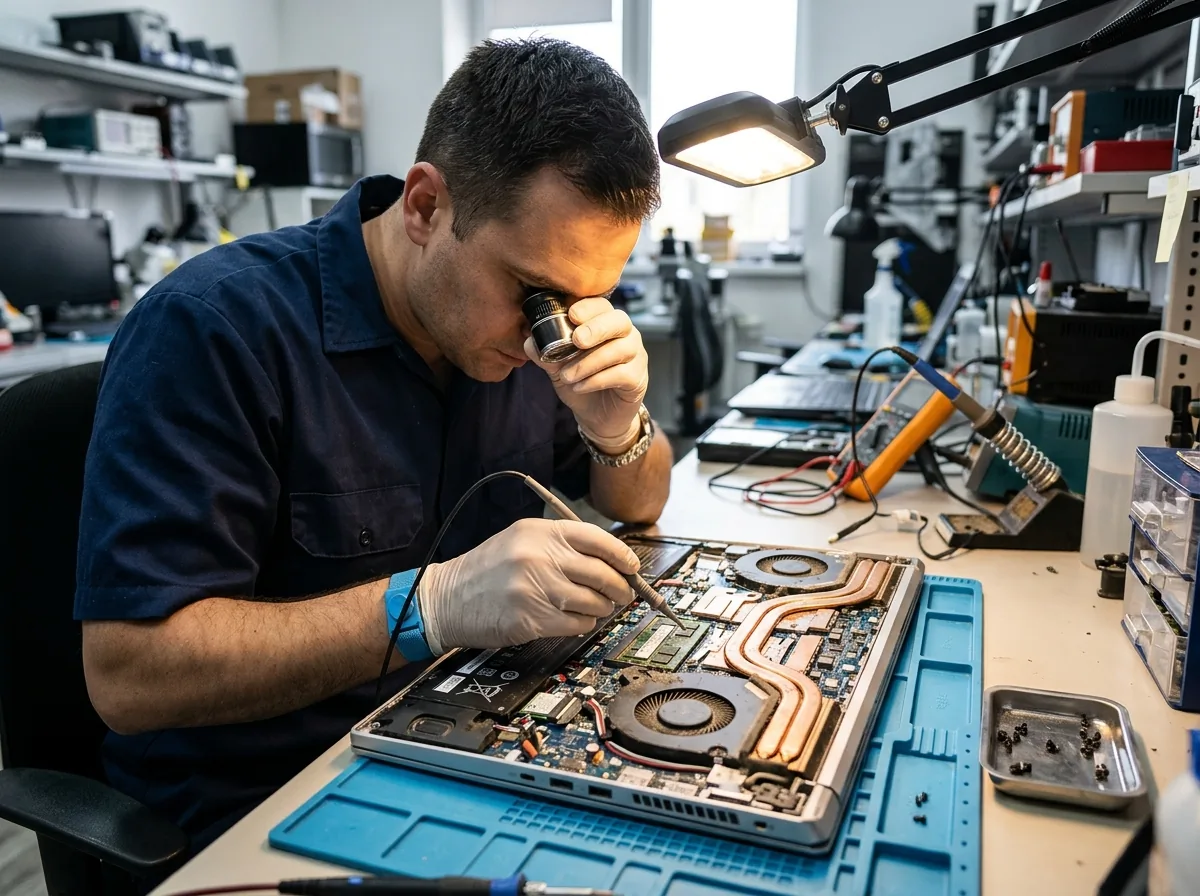
Quick answer: Why is my laptop overheating?
The most common reasons a laptop overheats include:
- Blocked air vents or restricted airflow.
- Dust buildup around the fan and internal cooling components.
- Heavy applications or background processes using substantial CPU or GPU resources.
- A cooling fan that is malfunctioning.
- A cooling-system problem requiring hardware inspection.
- Software, driver or power-management issues.
1. What are the common signs of laptop overheating?
Excessive heat around the laptop
The keyboard, underside or exhaust area feels unusually hot, particularly when the laptop is not running demanding applications.
Loud or constantly running fans
The cooling fan runs at high speed for extended periods or makes unusual grinding or rattling sounds.
Slow performance
Applications become sluggish, performance drops under load or the laptop becomes unresponsive.
Unexpected shutdowns or restarts
The laptop powers off or restarts without warning. Overheating is one possible cause, although power and other hardware faults can produce similar symptoms.
2. What causes a laptop to overheat?
Blocked air vents
Laptops need an unobstructed path for air to enter and hot air to escape. Using a laptop on a bed, blanket, pillow or soft surface can restrict its ventilation.
Dust accumulation
Dust and debris can collect around the cooling fan, vents and internal heatsink. Over time, this may reduce cooling efficiency.
Heavy applications and background processes
Video editing, gaming, multiple demanding applications and background updates can increase processor and graphics activity, causing the cooling fan to work harder.
Cooling fan or cooling-system problems
A damaged fan, restricted internal airflow or a problem with the heatsink or thermal interface may prevent the laptop from dissipating heat properly.
Software or power-management issues
Some overheating complaints occur alongside high background resource usage, outdated drivers or configuration problems.
3. How to fix an overheating laptop: Safe troubleshooting steps
Try these steps in order, checking whether the problem improves after each one.
Move the laptop to a hard, flat surface
Keep the air intake and exhaust vents clear. Avoid operating the laptop on fabric or directly in sunlight.
Check application activity
Review CPU usage in Task Manager. Close unnecessary applications and allow demanding updates or tasks to finish.
Restart after saving your work
If the laptop is only moderately warm and behaving normally, a restart may help resolve a temporary software or background-process issue.
Check updates and manufacturer diagnostics
Use the appropriate support tools for your laptop brand. Follow model-specific guidance rather than installing random drivers or firmware.
Seek professional diagnostics if it continues
Persistent overheating may require internal cleaning, fan inspection or further hardware diagnostics.
4. What should you avoid when your laptop overheats?
Some quick fixes can create additional problems.
- Do not ignore repeated thermal shutdowns.
- Do not open the laptop unless you know how to service that model safely.
- Do not use liquids or household cleaning products on vents.
- Do not insert objects into the fan or vents.
- Do not install unverified driver-update or temperature-fixing applications.
- Do not attempt BIOS updates as a first response to overheating.
If the battery or laptop casing is swollen or deformed, you notice a burning or chemical smell, or the laptop becomes dangerously hot, stop using it, disconnect power if it is safe to do so, and seek professional assistance. Do not press, puncture or attempt to remove a swollen battery yourself.
5. When should you get your laptop checked by a technician?
Consider professional laptop diagnostics if:
- The laptop overheats even when you are doing light tasks.
- The fan makes grinding, rattling or other unusual noises.
- The laptop repeatedly shuts down or restarts unexpectedly.
- Performance drops significantly when the laptop becomes hot.
- The fan appears not to work correctly.
- The problem continues after you have checked airflow and application activity.
A technician can assess the cooling fan, vents, heatsink, thermal interface and other relevant hardware. The required repair depends on the findings; overheating does not always mean that a component needs replacing.
6. Can laptop overheating be prevented?
A few consistent habits can help reduce avoidable heat buildup.
| Habit | Why it helps |
|---|---|
| Use a hard, flat surface | Helps keep ventilation openings clear. |
| Keep external vents clear | Supports airflow through the cooling system. |
| Review demanding applications | Helps identify unnecessary processor or graphics load. |
| Keep software appropriately updated | May address relevant software and driver issues. |
| Arrange cleaning when needed | Helps address dust buildup that restricts airflow. |
| Investigate recurring fan noise | Can help identify cooling problems before they worsen. |
The goal is not to keep a laptop completely cool at all times. It is to ensure that its cooling system can manage the workload without persistent abnormal heat or disruptive symptoms.
7. Laptop overheating repair in Hyderabad
If your laptop continues to overheat despite basic troubleshooting, the next step is to identify the underlying cause rather than replace parts unnecessarily.
Cache Technology provides computer hardware services and technical support in Hyderabad. Depending on the device and diagnostic findings, you can enquire about relevant services such as:
- Laptop hardware diagnostics for thermal throttling and rail shorts.
- Internal cleaning and preventive maintenance including thermal paste application.
- Cooling fan and related hardware assessment and mechanical bearing restoration.
- Hardware repair or replacement where damaged fans or heatsinks require genuine OEM units.
The available service and recommended repair depend on the laptop model and the fault identified.
Need help with an overheating laptop?
Contact Cache Technology to discuss your laptop's symptoms and the appropriate diagnostic service.
Frequently asked questions
Background applications, updates, high resource usage or a cooling-system problem may be responsible. Check Task Manager and whether the fan remains unusually loud. If the laptop stays very hot while idle, arrange an assessment.
Fan speed can increase during demanding tasks to remove heat. Persistent loud noise during light use, grinding sounds or overheating accompanied by shutdowns may indicate a problem that needs investigation.
Yes. Dust buildup around vents, fans and cooling fins can restrict airflow and reduce cooling efficiency. Internal cleaning should be performed safely using a method suitable for the laptop model.
A cooling pad may improve airflow in some circumstances, but it cannot repair a faulty fan, internal obstruction or other hardware problem. Identify the underlying cause if overheating persists.
If the laptop is only mildly warm during demanding work, that may be normal. Stop using it if it becomes dangerously hot, shuts down repeatedly, smells burnt or shows signs of battery swelling. Seek professional assistance for these warning signs.
No. Restricted airflow, dust, heavy application usage, software settings and cooling-system faults can all contribute. Diagnostics help determine whether cleaning, configuration changes or hardware repair is appropriate.
You can contact Cache Technology in Hyderabad to discuss the symptoms and enquire about relevant laptop diagnostics and repair services. Confirm the applicable service scope and arrangements before proceeding.